Manage Header & Footer
With Rivax Templates and Elementor, you can easily create fully custom headers, footers, and sticky headers without writing any code.
Step 1: Create a Template or Edit an Existing One
- Navigate to Rivax Templates.
- Create a new template or edit an existing one.
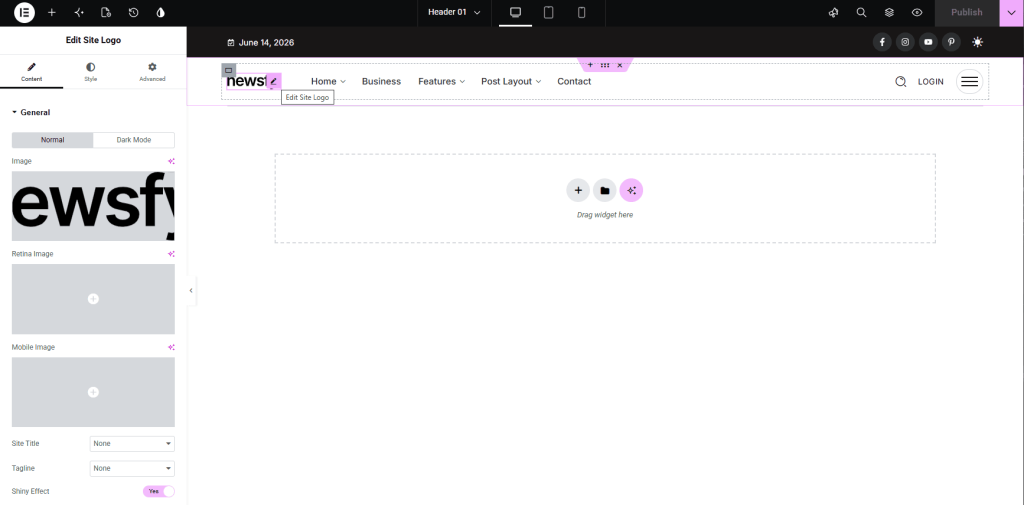
- Edit it with Elementor.
- Design your layout as desired using Elementor widgets and controls.
Step 2: Assign the Template
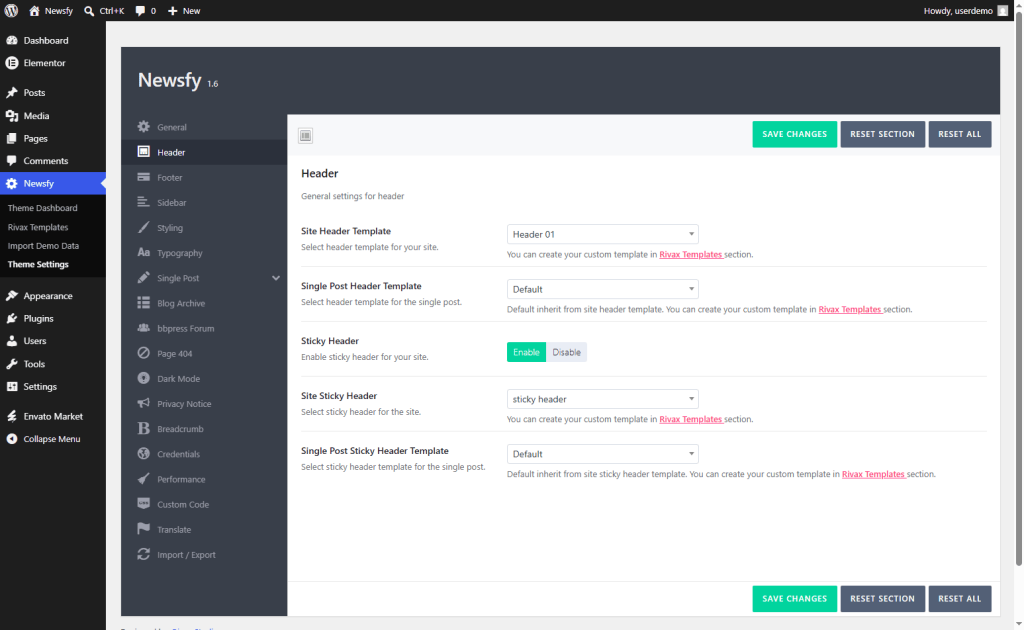
- Navigate to Theme Settings.
- Open the Header or Footer tab.
- Select your custom template as the site header or footer.
- Save your changes.
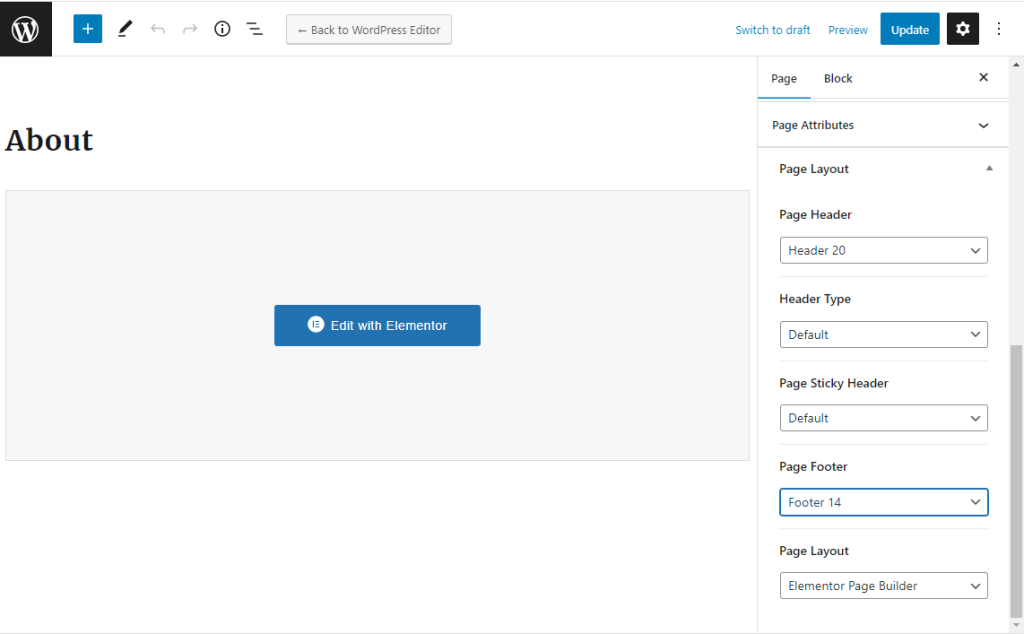
This template will be used globally across your entire website by default. However, you are not limited to a single global header or footer. For any page or post, you can override the global settings and choose a different header or footer template from the page settings in the Gutenberg editor. To do this:
- Edit the page or post.
- Open the Gutenberg sidebar settings.
- Locate the Page Layout section.
- Select the desired Header or Footer Template.
Note: If you imported one of our demos, some pages may already have custom header or footer templates assigned. Therefore, changing the global header or footer in Theme Settings may not affect those pages.
If you want the same header and footer to be displayed throughout the entire website, edit those pages individually and set the Header or Footer Template options to Default. This will make them inherit the global templates selected in Theme Settings.